Your Audio Interface Is Not the Problem: Killing Dropouts With Software Alone
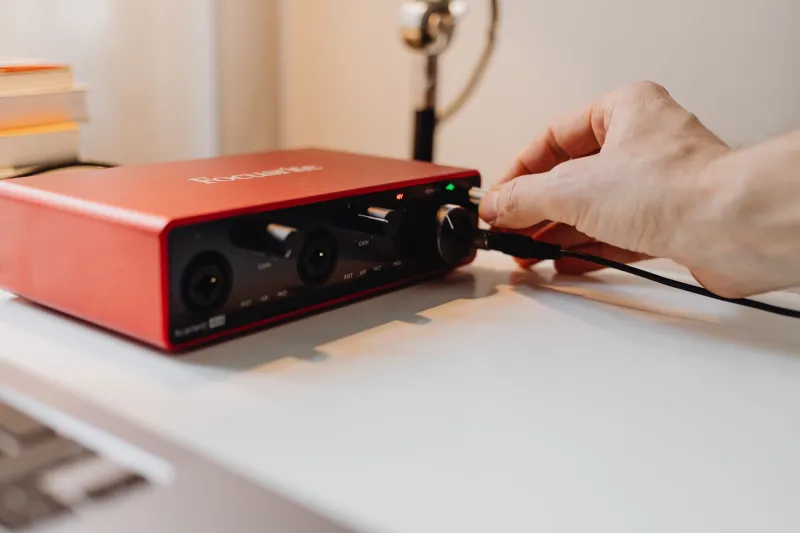
I have watched this happen maybe forty times. Someone posts a clip of their session crackling, a chorus of strangers diagnoses the interface, they spend a Saturday at the music store, and the crackle comes back on Tuesday with a new logo on the desk. The audio interface is the least likely component in your signal chain to be causing dropouts, and it is almost always the first one blamed.
This is a stance, not a neutral guide. Converters and preamps rarely fail in ways that sound like a stutter. Clocks, drivers, and interrupt scheduling do. So before you open another tab at Sweetwater, spend twenty minutes running the audit below.
Make it fail on command first
You cannot diagnose an intermittent problem, so the first job is turning it into a repeatable one. Load a session that misbehaves and loop the same eight bars. Add a couple of virtual instruments and a bus compressor so the CPU load is realistic, not idle. If the dropout only appears during a two-hour session, force it: leave the loop running with a browser open and a video call in the background. Once it fails predictably, you can change one variable at a time and watch the result.
If you cannot make it fail at all, stop here. You have a different problem, and it is probably a plugin that misbehaves on load, not your hardware.
The buffer and sample rate conversation
Ninety percent of crackle complaints resolve here. A 64-sample buffer at 44.1 kHz is a few milliseconds of headroom; at 96 kHz it is half that, which is why the same session that ran clean last month now pops after you switched rates for a video project.
Check three things, in this order: the buffer size in your DAW, the sample rate in the DAW, and the sample rate your operating system thinks the interface is running at. Those last two disagree more often than anyone admits, and macOS's Audio MIDI Setup and Windows' Sound Control Panel are both happy to hold a stale value while your DAW asks for something else. Mismatched rates produce clicks that sound exactly like a dying converter.
The USB hub is guilty until proven innocent
Every interface with a busy bus in front of it is a candidate. A powered hub sharing bandwidth with a webcam, an external SSD, and a keyboard is a recipe for periodic dropouts, especially on laptops where the port is already splitting lanes. Plug the interface directly into the machine, on its own controller if you can, and re-test. If the crackle vanishes, you found it, and the fix cost nothing.
Two more topology notes: Thunderbolt docks can introduce their own scheduling quirks with USB audio, and aggregate or multi-device setups on macOS add clock drift into the picture. Both are software problems dressed up as hardware failures.
Background processes, Wi-Fi, and the power plan
On Windows, install a DPC latency checker and let it run while the loop plays. Spikes in the red during your test point straight at a driver — often a network adapter, a Bluetooth stack, or a GPU utility that polls constantly. On Mac, the equivalent suspect list is Spotlight indexing, Time Machine running mid-session, and anything that wakes the CPU. A Wi-Fi card that scans for networks every few seconds is a classic culprit on both platforms.
Set the machine to a high-performance or plugged-in power profile while recording. Aggressive power management on modern laptops parks cores in ways that audio drivers hate.
DAW-specific quirks worth knowing
- Ableton Live: the CPU meter and the audio dropout counter tell different stories. Turn on Reduce Latency When Monitoring only if you are actually monitoring through the DAW, and check whether multicore support is fighting a plugin that is not thread-safe.
- Logic Pro: Low Latency Mode disables latency-inducing plugins instead of fixing the underlying load, which can disguise the real problem. Also verify the buffer range in the audio preferences is actually applied to the open project.
- FL Studio: the underruns counter under Audio Settings is the single most useful diagnostic number in the app. Watch it climb during the loop and correlate it with what you change.
- Reaper: the performance meter separates FX CPU from total CPU, which quickly tells you whether a plugin chain or the interface is to blame.
- Pro Tools: the Playback Engine settings and the Ignore Errors option are useful for isolating a session, but Ignore Errors during a real take just hides a symptom you will hear later.
The pattern across all of them: measure, isolate, then change one thing.
The checklist, in order
- Reproduce the dropout in a loop with realistic load.
- Confirm DAW buffer, DAW sample rate, and OS sample rate agree.
- Plug the interface directly into the computer, no hub.
- Disconnect or disable Wi-Fi and Bluetooth during the test.
- Run a latency checker and note which driver spikes.
- Set the highest performance power profile.
- Disable Spotlight, Time Machine, and cloud sync for the duration.
- Test with all third-party plugins bypassed, then add them back in halves.
- Try a different USB cable, then a different port, in that order.
- Test the interface on another computer before you return it.
When it genuinely is the hardware
Sometimes it is. A failing USB port, a cable that has been yanked one time too many, a power supply that cannot deliver stable bus power, or an interface whose drivers stopped being updated for your current OS are all real failures. The tell is repeatability: if the dropout follows the interface to a second computer with a clean install, you have your answer and my blessing to upgrade.
Until then, save your money. Your interface is probably fine, and the thing crackling has been a network driver and a sample rate mismatch all along.